
Blog Post
How to Create a Waveapps Invoice and Send the Right Copy
To create a Wave invoice, use Wave's web-based invoicing software to build and send the customer bill, then verify the delivered copy against your own customer, date, line-item, total, and payment records.
Logan Moore
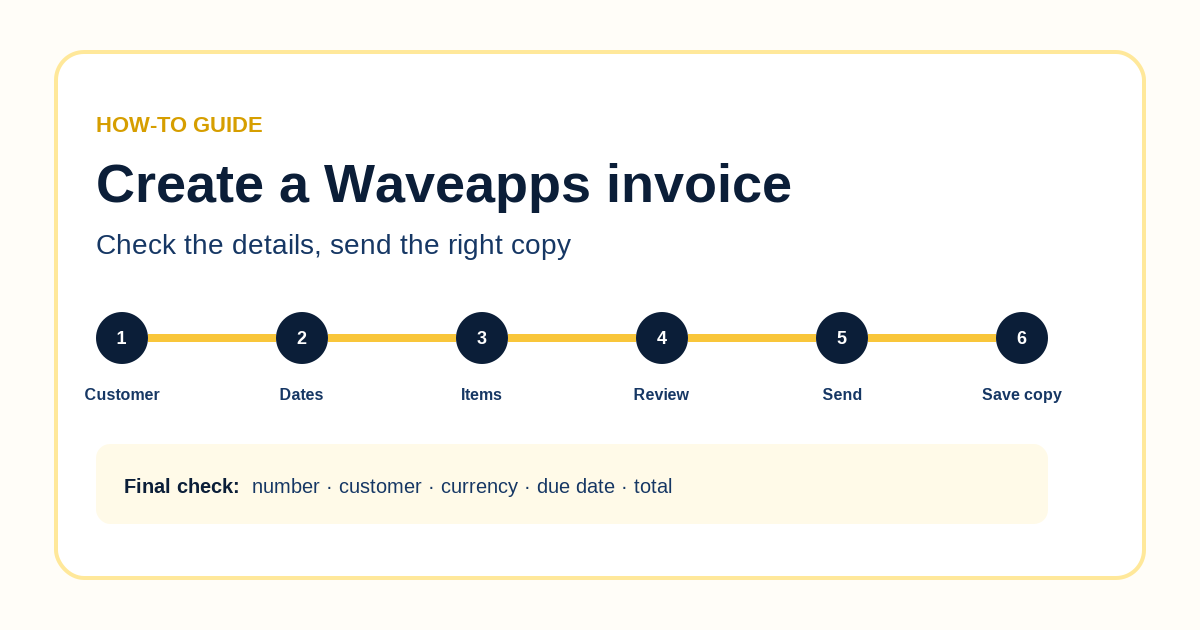
To create a Wave invoice, use Wave's web-based invoicing software to build and send the customer bill. Review the customer, currency, due date, line items, and total before delivery, then retain the final copy that the customer received.
This checklist stays at the level supported by Wave's accessible public invoicing page. It does not claim that a particular menu label, save control, approval state, or plan entitlement will remain unchanged.
How do you start a Waveapps invoice?
Start in Wave's web-based invoicing software. Wave's official invoicing page explains that its web-based invoicing software lets a business create and send invoices from a computer The page adds that an internet connection and browser are required. That supports a browser-based create-and-send workflow, not the exact controls inside an account.
Before adding prices, settle the document identity:
- Check the invoice identifier against your own records.
- Add an existing customer or create a new customer.
- Choose the invoice date and payment due date.
- Add a purchase-order or sales-order number when the customer requires one.
- Review the business name, address, title, summary, and logo.
If the product presents shared business-profile fields, read the on-screen consequence before changing them. This is a general precaution; the accessible Wave source cited here does not document how profile edits affect past invoices.
How do you add services, prices, and tax?
Enter each service as a clear line with its description, quantity, and price. Read every rate rather than assuming a saved or previously used value is still correct. The exact field names and tax controls are deliberately left to the current Wave interface.
| Check | Entered value | Independent check |
|---|---|---|
| Service call | 1 × $50 | $50 |
| Labor | 3 × $60 | $180 |
| Materials | 1 × $75 | $75 |
| Disposal / haul-away | 1 × $25 | $25 |
| Subtotal | $330 | 50 + 180 + 75 + 25 = 330 |
| Fictional item-level tax | 6% on $50 only | $3 |
| Total | $333 | 330 + 3 = 333 |
The labor row is 3 × 60 = 180 before the other rows are added.
The quantities and prices come directly from WaffleInvoice's tracked handyman invoice template; they are sample content, not Wave defaults or a real bill. The source-backed subtotal is (1 × 50) + (3 × 60) + (1 × 75) + (1 × 25) = 330. The 6% rate remains explicitly fictional: applying it to the $50 service-call line produces 50 × 0.06 = 3, and 330 + 3 = 333. This demonstrates arithmetic, not Wave's tax interface. Confirm real tax treatment with the authority for the transaction's location.
How do you check the customer-facing copy before sending?
Review the Wave invoice before sending it. The accessible Wave source supports creating and sending invoices in a browser, but it does not support the precise draft or approval sequence inside an account.
Run this six-point pass:
- Customer name and email belong to the intended recipient.
- Invoice number is unique and follows your sequence.
- Issue and due dates reflect the agreement.
- Quantities, rates, discounts, and taxes reproduce the total.
- Currency matches the agreement and the customer's expectation.
- Notes and terms say how and when to pay without contradicting the due date.
Use the save, review, and send controls currently shown in your account, and confirm that your changes persist before navigating away. The public source cited here does not establish autosave or draft-recovery behavior, so this guide makes no promise about either.
How do you send the approved Waveapps invoice?
Send the invoice using the delivery option currently available in Wave. Wave's public invoicing page supports creating and sending from a computer browser, but it does not say that every account can download a PDF or use the same delivery controls. Confirm which file or link the customer received and keep the same final version.
A clean handoff includes a useful email subject, the invoice number in the message, the amount and due date, and one clear payment instruction. Avoid attaching an older draft while linking to a newer total. Open the attachment or customer link yourself before sending.
What should you save after sending?
Save the final Waveapps invoice, delivery evidence, and payment record under the same invoice number. A PDF is useful for portability, while the live record tracks status; neither should become an unlabelled duplicate on a desktop.
Retain the final customer copy before making later changes, using the export or recordkeeping method available to you. The accessible Wave page used here does not support claims about deletion recovery, bulk editing, or export controls.
If you prefer a billing-focused workflow, WaffleInvoice's tracked features define its plan boundary this way:
WaffleInvoice displays unlimited invoices and clients on Free, 25 platform invoice emails per rolling 30 days, a client portal and PDF downloads, and manual payment tracking. Pro adds connected Stripe card and ACH payments, recurring billing, automatic reminders, and unlimited email and SMS sends.
The tracked feature comparison supports these displayed WaffleInvoice plan boundaries. It does not demonstrate live email delivery, payment processing, or compatibility with Wave. The service-business feature page is the relevant place to compare those billing capabilities, while the pricing page explains the Free and Pro boundaries.
How do you record payment without confusing the invoice?
Record payment against the matching Waveapps invoice only after the money is confirmed and the amount is known. A partial payment should reduce the open balance; it should not make a $333 invoice look fully paid when only $300 arrived.
For the line-item calculation rather than delivery checks, use the Wave invoice arithmetic walkthrough.
In that partial-payment example, the remaining balance is 333 − 300 = 33. Keep the original invoice total intact and record the payment separately so the customer and your books can see both figures. When the last $33 clears, the balance becomes zero.
If you send invoices across several types of service work, WaffleInvoice's industry invoicing hub shows how line-item language changes by trade. The document still needs the same core controls: a traceable number, clear work, reproducible total, due date, and retained final copy.
Frequently Asked Questions
Quick answers to the questions readers ask most about this topic.
How do I create a Waveapps invoice?
Does Wave automatically save an invoice?
Can I change a Wave invoice number?
Should I save a PDF after sending?
How should I handle a partial payment?
Ready to improve your invoicing?
WaffleInvoice makes it easy to invoice faster, get paid on time, and manage your cash flow. Start free today.
Sign Up Free