
Blog Post
How to Use a Free Invoice Application in 7 Steps
A free invoice application creates, sends, and tracks customer invoices without an upfront subscription. Use one by setting your business details, adding a client, itemizing the work, checking the math, previewing, sending, and recording payment.
Logan Moore
A free invoice application creates, sends, and tracks customer invoices without an upfront subscription. Use one by setting your business details, adding a client, itemizing the work, checking the math, previewing, sending, and recording payment.
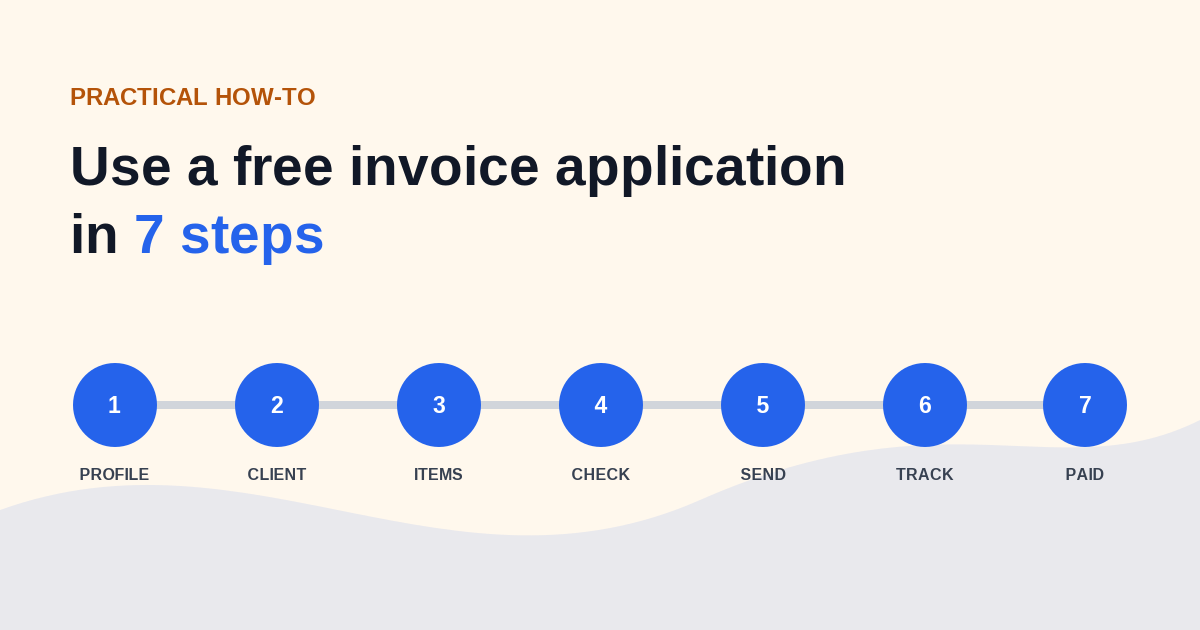
A free invoice application lets you create, send, and track customer invoices without paying an upfront subscription. Set up your business details, add the client, itemize the work, verify the total, preview the customer copy, send it, and record the payment. The walkthrough below follows that process in seven steps.
This is a how-to guide, not a ranking. Free-plan limits and payment features change, so verify the current product terms before moving live billing records.
What should you prepare before opening a free invoice application?
Prepare the business identity, client details, agreed scope, rates, dates, payment terms, and tax treatment before opening the app. That short preparation prevents the invoice screen from becoming the place where you make contract decisions.
- Your business or legal name and contact details
- The client's billing name, email, and address
- A unique invoice number and issue date
- Specific service descriptions, quantities, and rates
- The agreed due date and payment instructions
If you need a document without an account, the free fill-in invoice template is the simpler route. An application becomes useful when you want saved clients, statuses, sending history, and repeatable records.
Step 1: How do you set up the business profile?
Set up the business profile with the name and contact information the client recognizes. Add a logo only if it remains legible in the final PDF, and use a reply address someone checks.
Do not use a nickname that differs from the contracting party without context. The client should be able to connect the invoice to the estimate, agreement, or completed work. Preview the header on a phone-sized screen as well as a desktop.
Step 2: How do you add the client correctly?
Add the client using the exact billing entity and destination supplied by the customer. A project contact may approve the work while an AP mailbox receives the invoice, so record both roles when the app permits it.
Use fictional information for a test, not a made-up business presented as a real customer. If the buyer gave you a purchase-order number, put it in a dedicated reference field or a clearly labeled note.
Step 3: How do you build the invoice?
Build the invoice with descriptions that connect each charge to delivered work. Use the quantity and rate agreed with the client, and keep distinct deliverables on separate lines.
| Description | Quantity | Rate | Amount |
|---|---|---|---|
| Specific service | Agreed quantity | Agreed rate | Quantity multiplied by rate |
| Separate deliverable | Agreed quantity | Agreed rate | Quantity multiplied by rate |
| Total | Sum of reviewed line amounts | ||
Recalculate the amounts from the governing agreement rather than copying an unsupported example. Taxability depends on the seller's location, the customer's location, and what was sold; this workflow does not make a tax conclusion.
Step 4: How do you check the invoice before sending?
Check the invoice by recalculating every line and reading the customer copy from top to bottom. Confirm the invoice number, dates, client, scope, quantity, rate, subtotal, tax, total, terms, and payment instructions.
IRS Publication 583 cautions: “Proof of payment of an amount, by itself, does not establish you are entitled to a tax deduction.” It advises keeping other documents, including invoices, to show the cost was incurred. The IRS is the primary federal tax authority, so this is useful federal recordkeeping guidance; it does not prescribe one app or decide whether a particular expense is deductible.
Use the preview or PDF, not just the edit form. A field can be correct in storage yet awkward on the customer-facing page. Check wrapping, page breaks, currency symbols, and whether a long note covers the total.
Step 5: How do you send the invoice and preserve proof?
Send the invoice to the agreed billing destination and preserve a copy of what the customer received. A hosted link is convenient, but a dated PDF or export gives you an independent record if access changes later.
WaffleInvoice describes its plans this way: “Free includes unlimited invoice, estimate and client creation, with 25 invoice email sends per rolling 30 days (new accounts: 5 per 24 hours for 14 days). Pro is $19/month or $190/year for unlimited sends, online payments, recurring billing, reminders, time tracking and removal of WaffleInvoice PDF branding.” Creating an invoice and sending it by email use different limits. Check the current plan before a busy billing day, and use a received copy or delivery record to confirm that an email reached its destination.
The free invoice maker page explains the current sending workflow. Check the counter before a busy billing day if you depend on in-app email.
Step 6: How do you track the due date without over-automating?
Track the due date by recording the agreed term and scheduling a review after the invoice becomes due. Automation can send a reminder, but a person should handle disputes, changed scopes, returned emails, and partial payments.
Put the actual due date on the invoice rather than relying only on a relative term, which removes a counting dispute. Do not mark it paid because the customer says a transfer was initiated; use the status definitions your business follows.
Step 7: How do you record payment and close the invoice?
Record payment with the amount, date, method, and reference, then confirm the remaining balance according to the app's status and payment record.
For a partial payment, keep both the original invoice and the payment history rather than editing the original total down to the amount still owed. If you issue a refund or credit, preserve that as a separate event.
What should you test before trusting a free invoice app?
Test the free invoice app's math, exports, mobile layout, sending limits, correction workflow, and data retrieval with fictional information. A polished editor is only one part of the job.
- Create a fictional invoice and independently confirm every field.
- Download the PDF and inspect it at 100% zoom.
- Send it to an address you control and check the received copy.
- Record a partial payment, then the remainder.
- Export the invoice and payment history.
- Void a duplicate and confirm the audit trail remains clear.
For a broader distinction between one-off output and saved follow-through, read invoice generator tool versus app. The right application is the one whose saved record still makes sense after the PDF leaves the screen.
Which records should you keep after sending?
Keep the final customer copy, sending record, payment history, and any credit or correction together. Confirm that you can retrieve them without reconstructing the invoice from email threads.
Invoice records support the books, but they do not replace expense records, bank reconciliation, or tax advice. Agree on the handoff with the person who keeps your books before relying on the app as your only record.
Frequently Asked Questions
Quick answers to the questions readers ask most about this topic.
What is a free invoice application?
What information do I need to make an invoice?
Can I make an invoice free without an account?
Does a free invoice app replace bookkeeping?
Ready to improve your invoicing?
WaffleInvoice makes it easy to invoice faster, get paid on time, and manage your cash flow. Start free today.
Sign Up Free